Laptop Screen replacement

Replacing a laptop screen can seem daunting, but with the right preparation, it becomes a manageable task. The first step is to assess the extent of the damage to determine if a replacement is necessary. Issues like visible cracks, flickering, dead pixels, or a dim screen often indicate that the screen itself needs replacing. Ensuring that the problem isn't due to faulty connections or internal components is crucial before proceeding with the replacement.

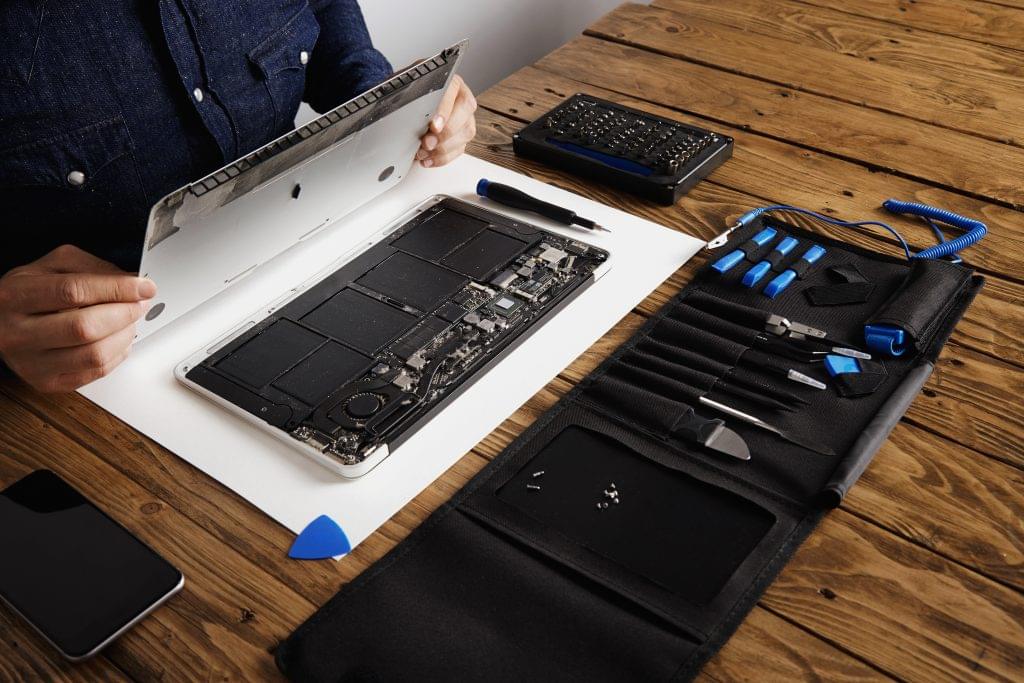
Once you've determined that a screen replacement is needed, gather the necessary tools and materials, including a compatible replacement screen, small Phillips and flathead screwdrivers, a plastic prying tool, and a clean, static-free workspace. Start by powering off the laptop, unplugging it, and removing the battery if possible. Carefully remove the bezel, the frame around the screen, using the prying tool to avoid damaging the plastic clips. After removing the bezel, unscrew the broken screen and gently tilt it forward to disconnect the video and any other attached cables.

Installing the new screen involves reversing these steps. Connect the video cable and any other necessary connections to the new screen, ensuring they are firmly in place. Secure the new screen with the screws, and then reattach the bezel, making sure all clips are properly fastened without any gaps. Once everything is in place, reinsert the battery, plug in the laptop, and power it on to test the new screen. Check for any display issues to ensure the replacement was successful.

Handling the screens with care is essential throughout the process, as they are fragile and easily damaged. Keeping track of all screws and small parts will help avoid any assembly issues. It's also important to work in a static-free environment to prevent static electricity from damaging the laptop's components. While this guide provides a straightforward method for screen replacement, those uncomfortable with performing the task themselves should consider seeking professional help. By carefully following these steps, you can restore your laptop to full functionality and extend its lifespan.
Gaaga Contact Form Img (1)
24/7 Contact Support

Do you have any querries please reach us